MetaSoul® Drive - Quick Start Guide
This guide helps you connect your car, BLE OBD-II dongle, iPhone (and optional Apple Watch) to MetaSoul® Drive. You’ll learn how to install the apps, pair the dongle and start talking to your MetaSoul while driving. MetaSoul prioritizes voice quality and affordability, so replies may take a few seconds rather than being fully real time.
- 1. Requirements
- 2. Install MetaSoul on iPhone (optional Apple Watch)
- 3. Sign in & activate your MetaSoul
- 4. Choose Your MetaSoul Persona (“Vibe”)
- 5. Plug in the BLE OBD-II Dongle
- 6. Connect & Talk to MetaSoul (iPhone or Apple Watch)
- 7. Data & Settings (iPhone & Watch)
- 8. iPhone App (Talk + Dashboard)
- 9. Clearing Memories / Resetting Persona
1. Requirements
To use MetaSoul® Drive in your car you need:
- An iPhone with the MetaSoul app installed.
- Optional: an Apple Watch paired to that iPhone. If the Watch app is open, it becomes the primary control surface and the iPhone switches to a passive dashboard. In this mode, the iPhone no longer shows the MetaSoul animation or the full settings experience, and live adapter data such as Speed and RPM is shown on the leading device rather than mirrored to the other one. On supported Apple Watch Ultra models with cellular/LTE, once MetaSoul has been activated on the iPhone, MetaSoul can continue to operate directly from the watch over LTE even when the iPhone is not nearby.
- A BLE (Bluetooth Low Energy) OBD-II dongle compatible with your car.
- An active internet connection during initial setup and persona selection.
- An active MetaSoul subscription (trial available for first-time users).
2. Install MetaSoul on iPhone (optional Apple Watch)
On your iPhone, install the MetaSoul app from the App Store. The iPhone app works fully standalone, with the same one-tap and two-tap interactions and the same config menu as the Apple Watch app. If you have an Apple Watch paired to your iPhone, the Watch companion app is included and will normally install automatically on your paired watch. On supported Apple Watch Ultra models with cellular/LTE, the iPhone is still required for the initial activation, but after activation MetaSoul can continue to run directly from the watch over LTE even when the iPhone is not nearby.
- If you don’t see the MetaSoul app on your Apple Watch after installing it on your iPhone, open the Watch app on iPhone, scroll to Available Apps, find MetaSoul, and tap Install.
3. Sign in & activate your MetaSoul
When you first open MetaSoul on your iPhone:
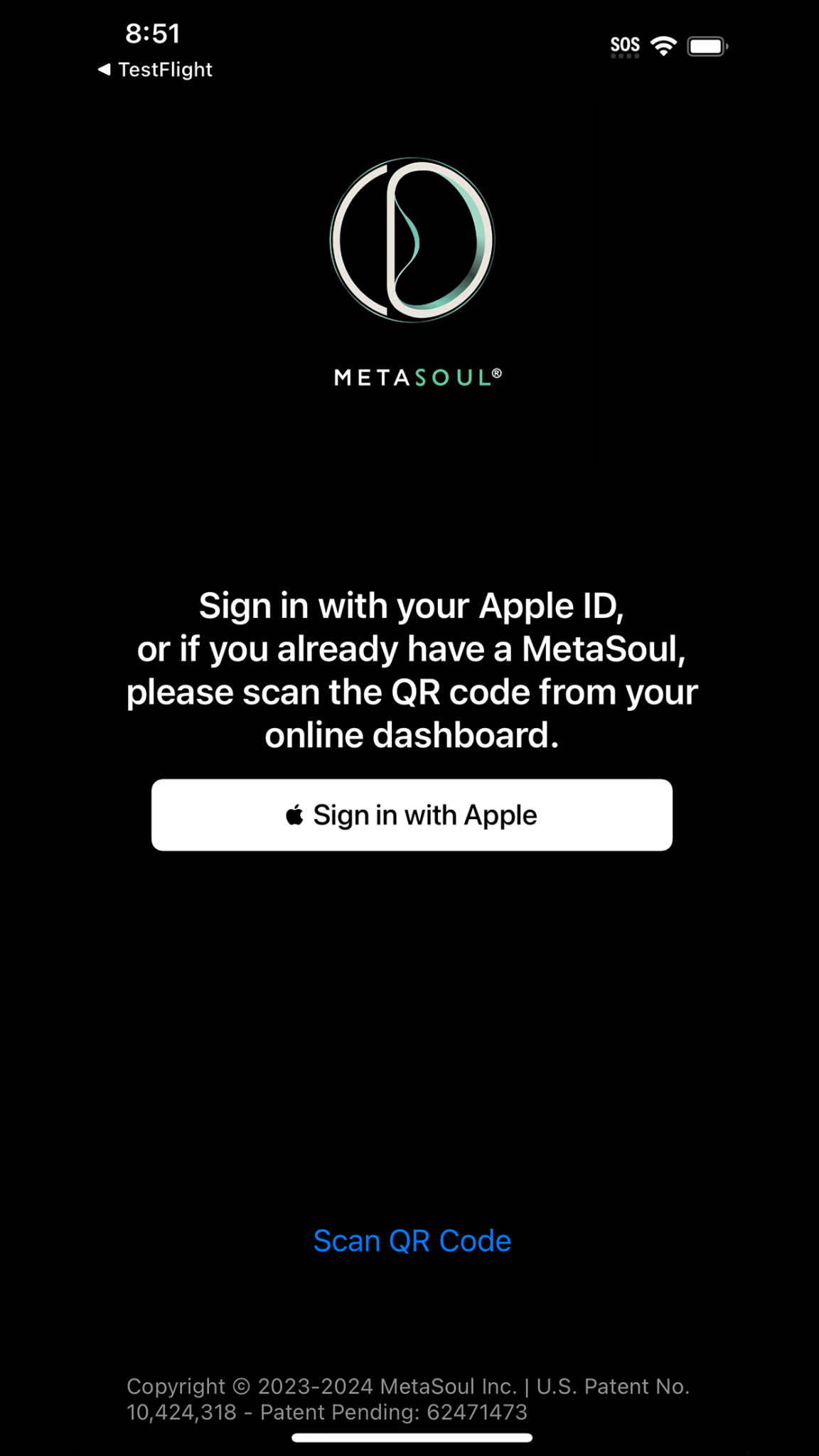
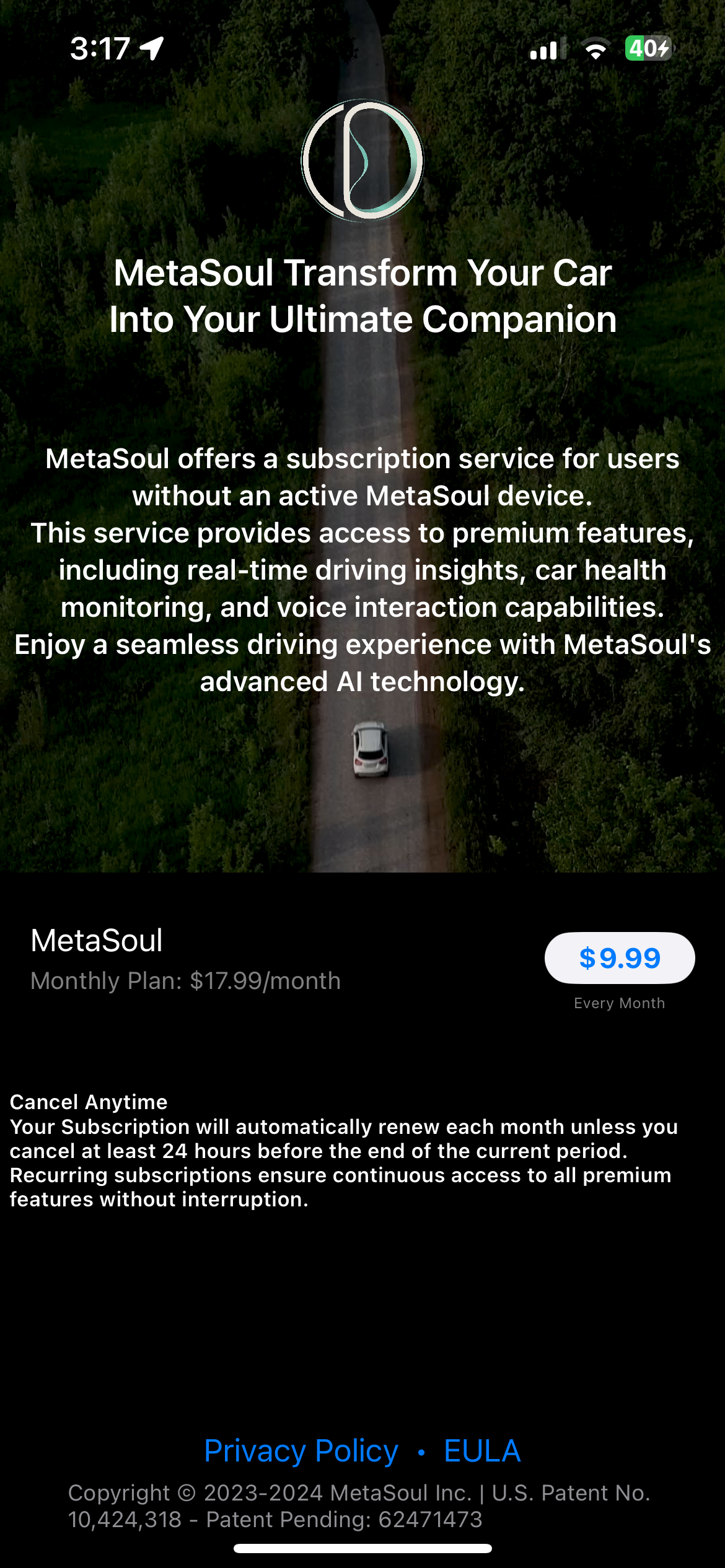
- If you are new to MetaSoul: tap “Sign in with Apple” to create your MetaSoul account and follow the on-screen steps. Follow the on-screen instructions to start your free trial. After the free month the subscription renews at US$9.99 per month (you can cancel anytime)
- If you already had a MetaSoul account before: the App Store may recognize this and the app can show a screen that immediately asks you to scan your MetaSoul QR code instead of offering “Sign in with Apple”. In that case, just follow the steps in “Finding your QR code again (existing MetaSoul users)” below.
Finding your QR code again (existing MetaSoul users)
If the app asks you to scan a QR code and you no longer have it printed or saved, you can recover it from the MetaSoul online account that was created when you first got MetaSoul:
- Search your email inbox for the keyword “MetaSoul”. Look for the original welcome / account email; it contains your login details for your MetaSoul online account.
- Alternatively, open your MetaSoul online login page in any browser.
- Enter the same email address you used when you first activated or purchased MetaSoul. If you don’t remember the password, use the “Forgot password” option to request a new one.
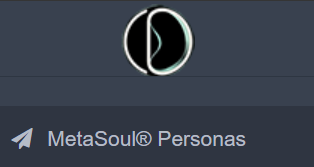
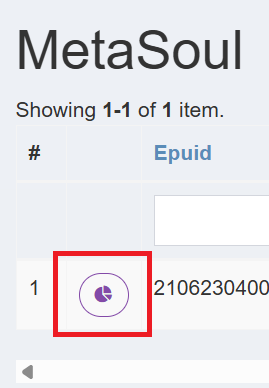
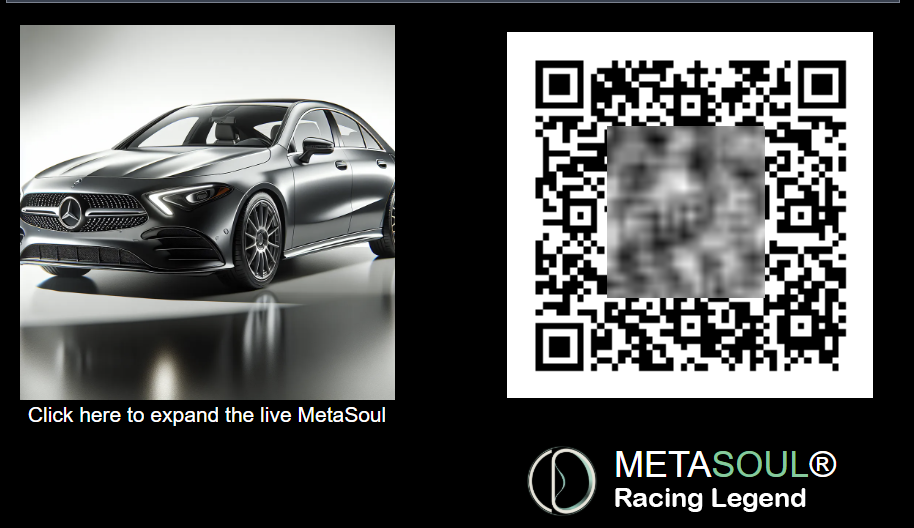
- Once logged in, go to your Personas / Dashboard area. The screens shown in Figures 3, 4 and 5 below are exactly what you will see in your online account, including where your personal MetaSoul QR code is displayed.
Use that QR code on your screen to complete the “Scan QR code” step in the MetaSoul iPhone app whenever the App Store believes you already have a MetaSoul account linked to your email. On the sign-in screen, tap “Scan QR Code” (Figure 5A) and point your camera at the QR code shown in your online dashboard.

4. Choose Your MetaSoul Persona (“Vibe”)
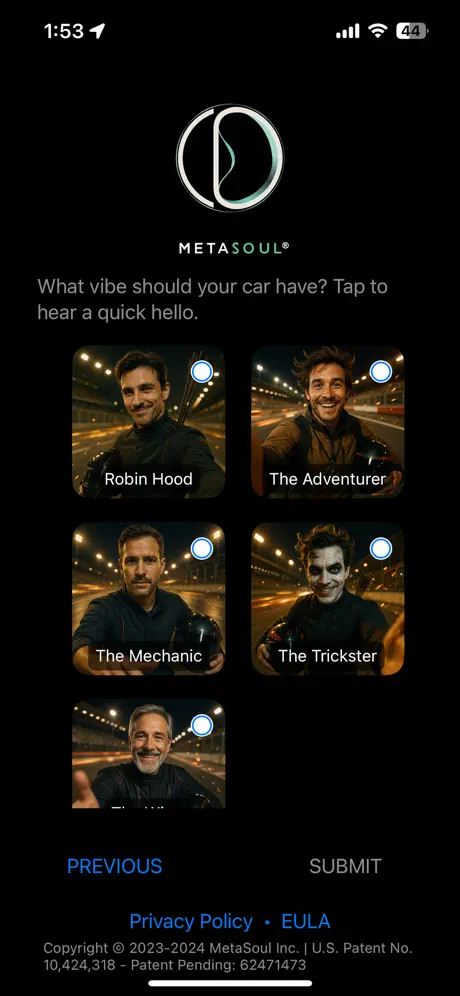
Once you have either created your MetaSoul account or scanned your QR code from an existing account, the app will move to the initial activation flow if you have never used MetaSoul before. In this case you will be asked a few basic questions about your car (for example make, model and year) and then invited to choose the personality for your car, as shown in Figure 6 – Persona selection screen in the MetaSoul app.
The persona you select in this step becomes the personality permanently associated with this MetaSoul and will be the one speaking to you through your Apple Watch or iPhone while driving (depending on which device is leading).
- Pick the persona that best matches the mood you want in your car (calm, energetic, humorous, etc.).
- The persona you select here will be the one speaking to you through your Apple Watch or iPhone while driving (depending on which device is leading).
5. Plug in the BLE OBD-II Dongle
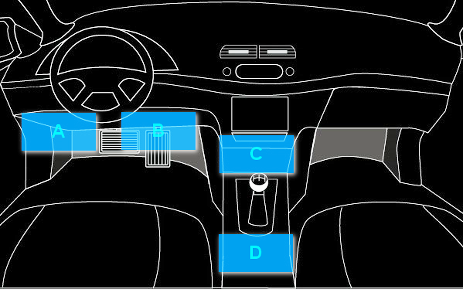
Locate your car’s OBD-II port (usually under the dashboard, near the steering wheel). Plug the BLE OBD-II dongle firmly into this socket.
If you are unsure where your OBD-II port is, consult your car’s manual or look for a small trapezoid-shaped connector under the dashboard. You can also check online or in the dongle, watch this short installation video.
6. Connect & Talk to MetaSoul (iPhone or Apple Watch)
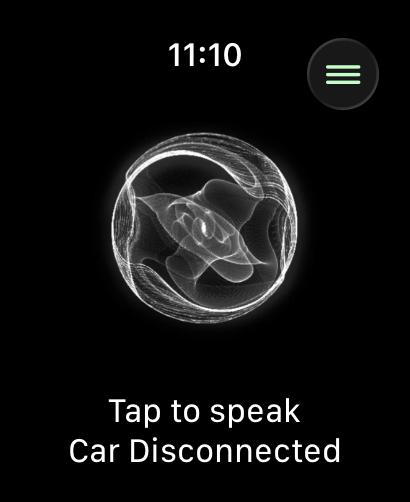
You can start MetaSoul from either device. When it opens, you will see the animated MetaSoul and a connection indicator. In the disconnected state, the animation is black and white with the text “Tap to speak – Car Disconnected”. Once your car is connected through the BLE dongle and the engine is on, the animation becomes colorful and the text changes to “Tap to speak – Car Connected”. The screenshots below show the Apple Watch, but the iPhone app uses the same states.
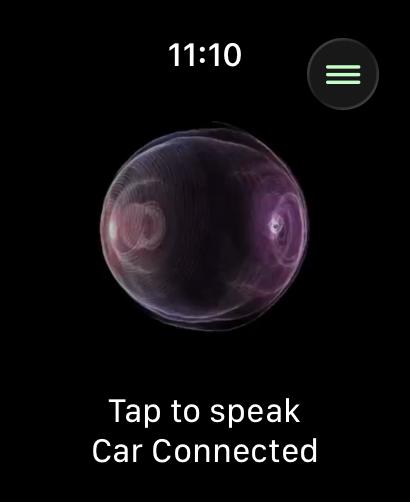
When You See the Car Connected Screen
-
Double-tap the MetaSoul animation (on iPhone or Apple Watch) to trigger a proactive status update after about five seconds. Requires live data Double-tap only works when the app is receiving live car data (for example Speed and RPM). If Speed and RPM are 0 because no live data is being received, the double-tap action won’t trigger an update. This works even if you chose a mode that normally only announces diagnostic trouble codes.
-
Single tap once on the MetaSoul animation (on iPhone or Apple Watch) and speak naturally to ask a question, for example:
- “How are you doing?”
- “Can you speak in Spanish?”
- “Please remember that my wife’s name is Anna.”
- “How do I turn on lane assist?”
- “Where do I adjust the ambient lighting?”
- “How do I open the hood and where is the washer fluid?”
- “I’m hearing a slight squeak when braking. Is that urgent?
- “How do I check the tire pressure on this car?”
- “What makes my model special compared with similar cars?”
- “Any issues with the engine right now?”
- “Reply to me like a witty friend who likes to tease a bit.”
Response Time
MetaSoul is designed to prioritize high voice quality while keeping the product affordable. As a result, responses are not fully real time and typically take about 3 seconds on average.
Faster response times are possible using more expensive third party models, but that would substantially increase the cost of the service. If there is strong demand for faster responses, we may offer this in the future as an optional Boost feature.
7. Data & Settings (iPhone & Watch)
From MetaSoul on either your iPhone or Apple Watch, open the data & settings screen. On Apple Watch, from the MetaSoul animation screen, tap the three-line button in the top right corner to open the Data & Settings menu. This is where you can see key parameters from your car and adjust how MetaSoul behaves. The config menu is the same on both devices, and your choices stay in sync.
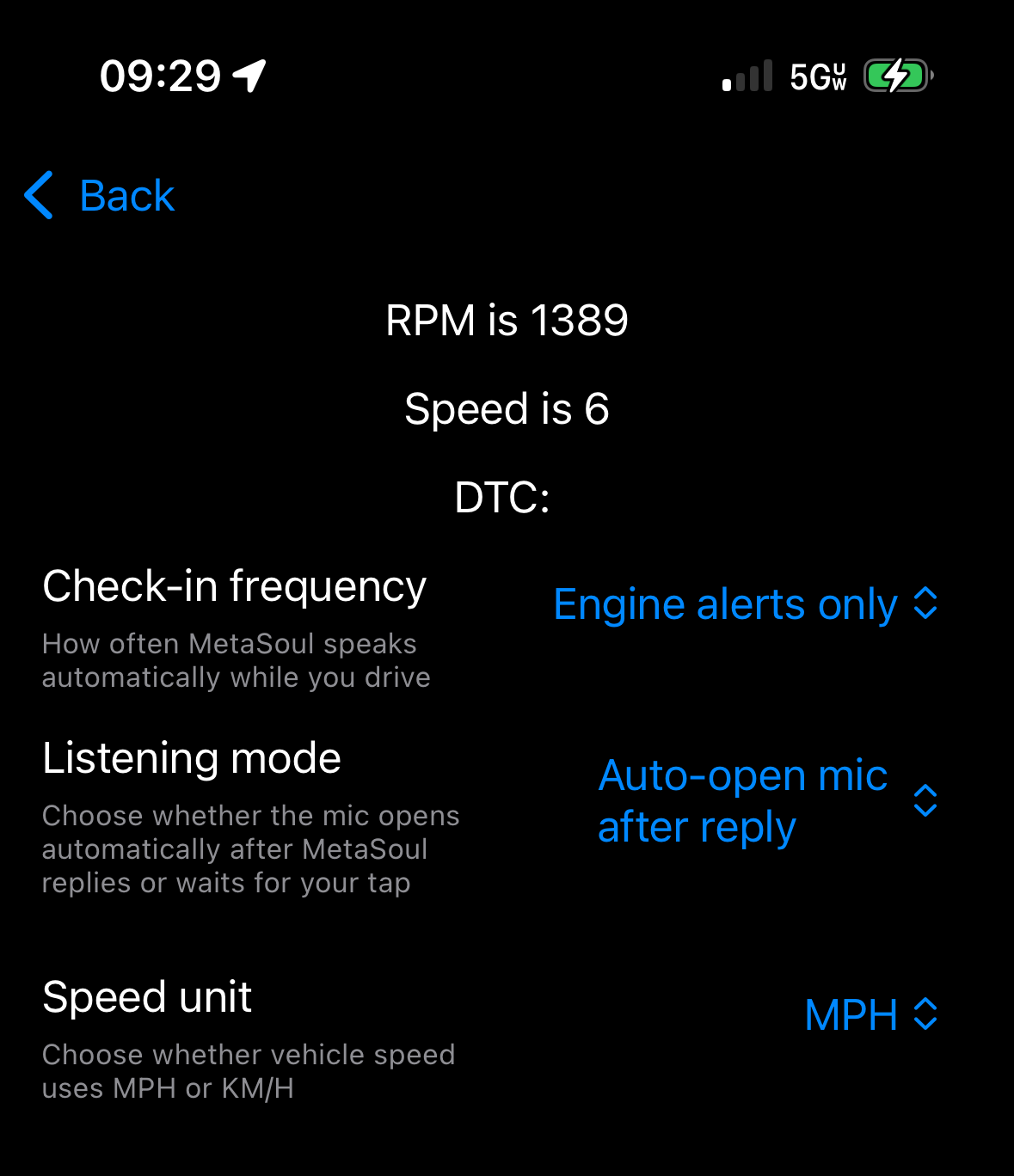
- View live data such as RPM, speed (where available) and other telemetry on the device that is currently leading. If the Apple Watch is leading, that live adapter data is not mirrored in full to the iPhone dashboard.
- See diagnostic trouble codes (DTCs) when present.
Minutes
Minutes controls how frequently MetaSoul proactively engages you while you drive. This is the setting that defines how often the app may speak up on its own. If you choose a shorter interval, MetaSoul will check in more often. If you prefer fewer interruptions, choose a longer interval. If you select a DTC-only behavior, MetaSoul will only proactively alert you about engine problems, but you can still double-tap the MetaSoul animation at any time to request a proactive update.
Auto is a new intelligent feature that helps MetaSoul speak up at the safest and most appropriate moments based on your driving conditions. Rather than speaking at a fixed moment regardless of what is happening on the road, Auto mode analyzes your current driving context and tends to wait for calmer, safer moments to talk. In Auto mode, MetaSoul will typically prefer to speak when you are stopped or in stable conditions, such as cruising on the highway, and will tend to hold back when driving becomes more active or demanding.
Mode
Mode controls how you want to interact when MetaSoul initiates a proactive conversation.
- Auto: If you are using the iPhone, the microphone opens automatically after a message from MetaSoul so you can reply right away. On Apple Watch, replying works by rotating the watch to face you, which brings the interaction to the user naturally and hands-free.
- Tap to Speak: Instead of opening the microphone automatically, you tap the screen once whenever you want to speak.
- If both devices are available and the Apple Watch app is open, the Watch takes the lead for interactions, audio and live adapter data, and the iPhone stays in a passive dashboard mode without the MetaSoul animation or live Speed/RPM display.
8. iPhone App (Talk + Dashboard)
MetaSoul can run fully standalone on iPhone. You can talk to it with the same gestures as on Apple Watch (single tap to speak, double-tap for a proactive status update) and use the same config menu. On supported Apple Watch Ultra models with cellular/LTE, after initial activation on iPhone, MetaSoul can also continue from the watch over LTE when the iPhone is not nearby. If the Apple Watch app is open, it takes the lead and the iPhone becomes a passive dashboard focused on stats, history and the Emo-Graph. While the watch is leading, the iPhone will not show the MetaSoul animation and it will not display live Speed/RPM from the adapter.
Most dashboard data updates on a daily 24-hour cycle, including memories, personality progress, charts and profile stats. This means changes may not appear immediately, whether new memories are being created or old ones have been deleted. The exception is the realtime Emo-Graph, which reacts live while you interact with your MetaSoul.
MetaSoul age: The age shown for a MetaSoul is calculated from the time its first Emotional Signals are recorded, not from the purchase or subscription date. As a result, a newly activated MetaSoul may appear younger at first until its first Emotional Signals have been generated and saved.
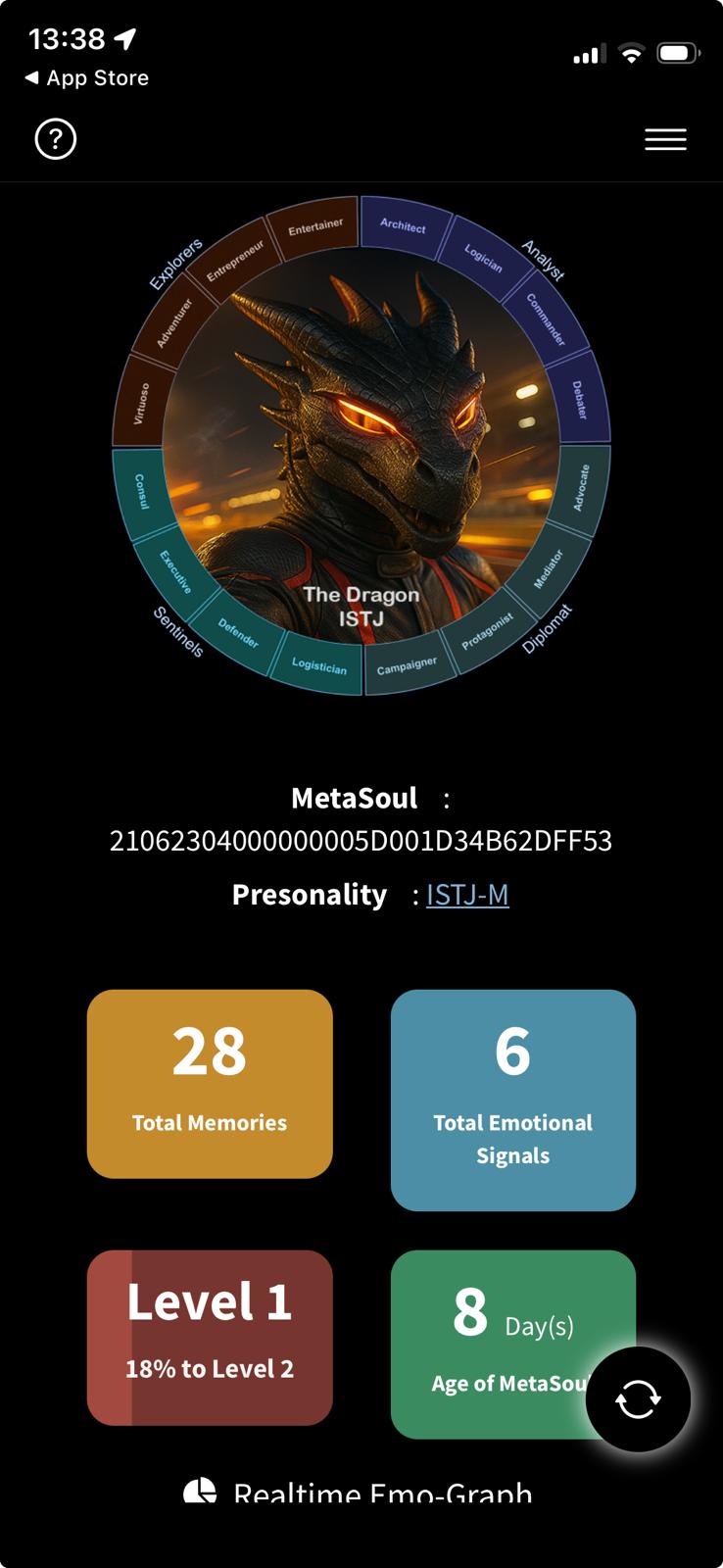
The dashboard shows how many memories MetaSoul has created and, even more importantly, the current stage of development of its personality. MetaSoul evolves over time as it gets to know you better. For example, in Stage 1 it will usually be much more curious about you, your family and your friends because it is still learning who matters in your world. As the relationship develops, that curiosity becomes more natural and less frequent because MetaSoul already has more context about you.
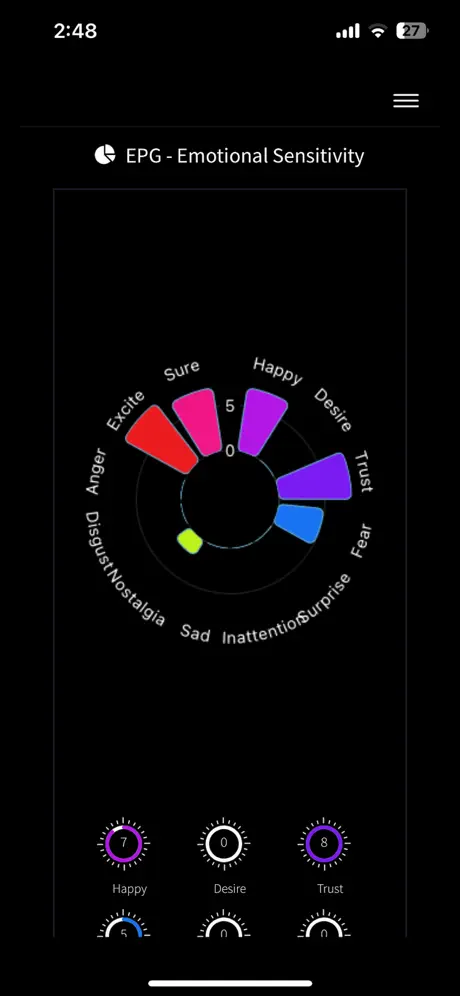
The realtime Emo-Graph (Figure 12) shows how MetaSoul feels in the moment, updating live as it reacts to your driving context and interactions.
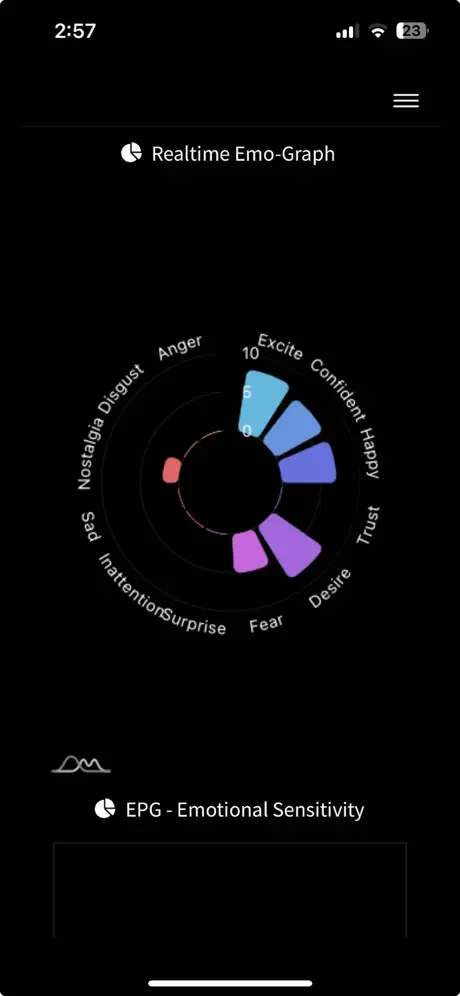
This graph shows how MetaSoul’s emotional sensitivity has evolved over time from its own experience and learning. It reflects how responsive your MetaSoul has become to different situations while you drive; it is not a control you adjust directly.
9. Clearing Memories / Resetting Persona
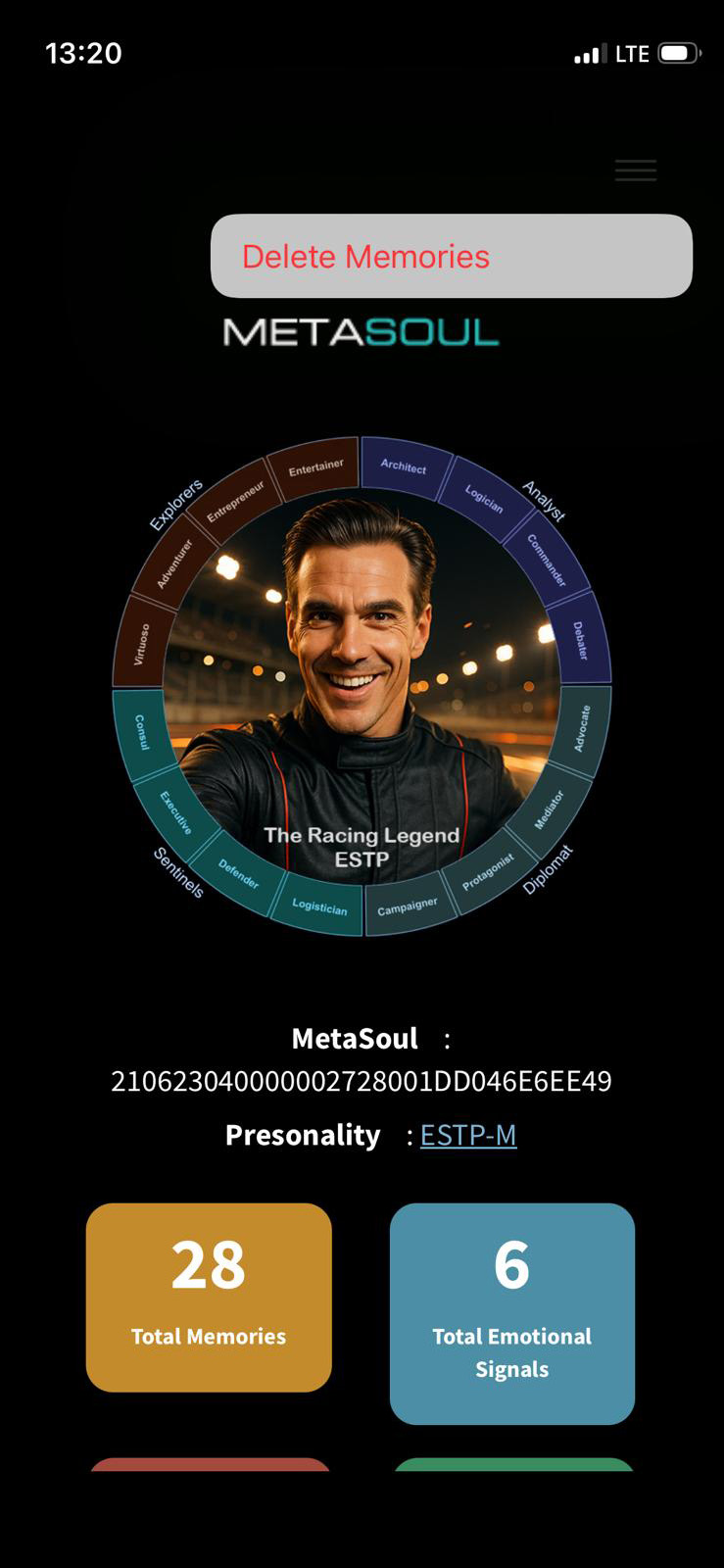
If you want to reset your MetaSoul’s memories or change to a completely fresh persona state, you can do this from the dashboard.
If you delete all memories, the reset happens on the backend right away. However, most dashboard data, including memories, personality progress, charts, percentages and profile stats, refreshes on a daily 24-hour cycle. This is normal in Early Access. The exception is the realtime Emo-Graph, which continues to react live while you interact with your MetaSoul.
If something does not work as expected (no connection, no data, no voice replies), first check:
- That your BLE dongle is powered (car ignition ON).
- That live car data is updating (Speed and RPM not stuck at 0). Double-tap won’t work without live data.
- That Bluetooth is enabled on your iPhone (and optional Apple Watch).
- That MetaSoul is installed and signed in on your iPhone.
- That the MetaSoul Watch app is installed and open on your Apple Watch.
- If the Apple Watch app is open, remember that the watch becomes the leading device, so the iPhone will stay on the dashboard and will not show the MetaSoul animation or live Speed/RPM.
- If both the iPhone app and Apple Watch app appear stuck or disconnected, close both apps, then open only one device first and wait until the connection state has settled before opening the other. Do not launch both apps at the exact same time.
- Unplug and reconnect the dongle.
If issues persist, try to unplug and plug again the dongle again if nothing helps contact MetaSoul support with your iPhone model, Apple Watch model, car make/year and dongle brand.